|
<< Click to Display Table of Contents >> Using Python to communicate with HIDs |
  
|
|
<< Click to Display Table of Contents >> Using Python to communicate with HIDs |
|
It is now possible to read values from HID (Human Interface Devices) such as weigh scales.
This can be done by using a Python library as a bridge between HID and Modbus which SpecView can natively communicate through.
The example explained below accesses weight values from a Dymo S100 digital weigh scale.
Please keep in mind that different devices will send data to the PC in different ways.
A bit of analysis and experimentation is required to assess how to decode the data being sent by the device.
Additionally, the code used in this example is just a sample.
There is no guarantee that it will work without appropriate modifications for a different instrument.
If there are inquiries regarding this procedure, please contact your SpecView representative for further assistance.
| • | Windows PC with administrator rights |
| • | SpecView software |
For help in downloading SpecView, visit https://www.specview.com/Download/download.html
| • | Wireshark software |
For help in downloading Wireshare, visit https://www.wireshark.org/download.html.
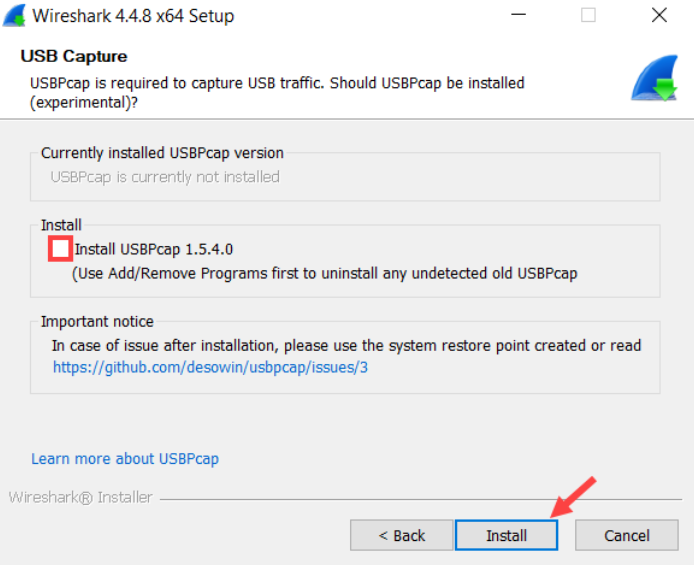
Ensure to install USBPcap when installing Wireshark.
| • | Python 3.x |
For help in downloading Python, visit https://www.python.org/downloads/windows/.
For additional help read through SpecView's help on downloading python.
| • | The following Python libraries. |
hidapi
pymodbus
Install the required Python packages by running the following commands in Command Prompt.
python -m pip install hidapi
python -m pip install pymodbus
If the hid package was previously installed and produces HIDAPI DLL errors, remove it first:
python -m pip uninstall hid
python -m pip install hidapi
Part 1 – Analyzing the data format with Wireshark
| 1. | Connect the instrument to the PC and ensure it functions correctly. |
For example, Dymo had their own application which reads the weight values.
The application was used to verify that the weigh scale was functioning correctly and that it was sending values to the PC.
| 2. | Exit any other software that might be polling the device. |
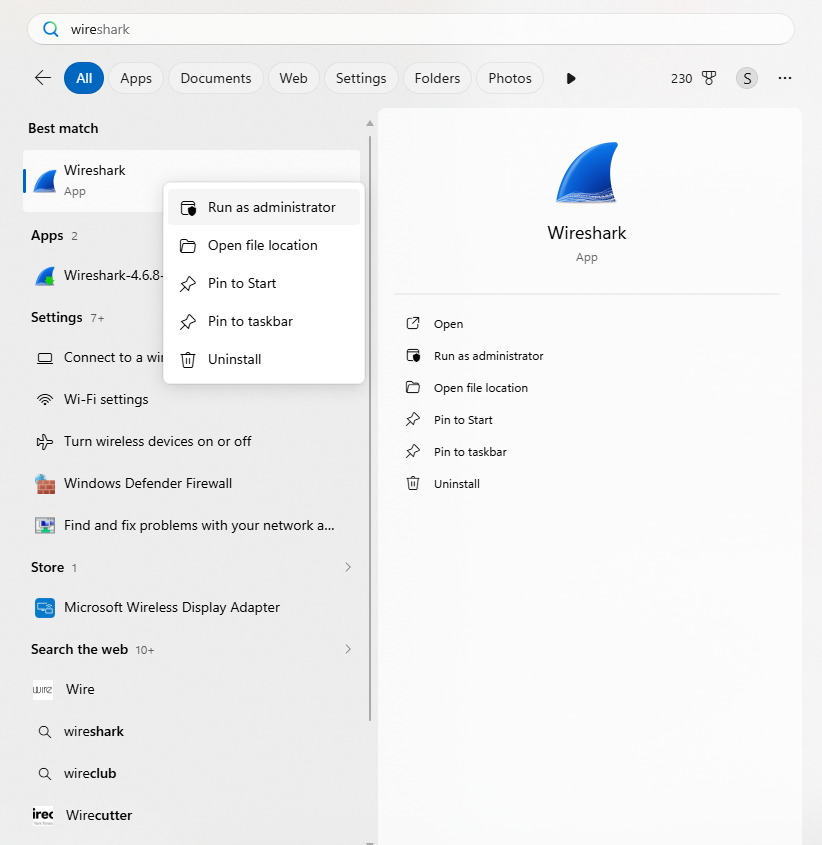
| 3. | Launch Wireshark by right-clicking and selecting to “Run as administrator”. |
| 4. | In Wireshark's interface list, locate the USBPcap entry (e.g. "USBPcap1"). |
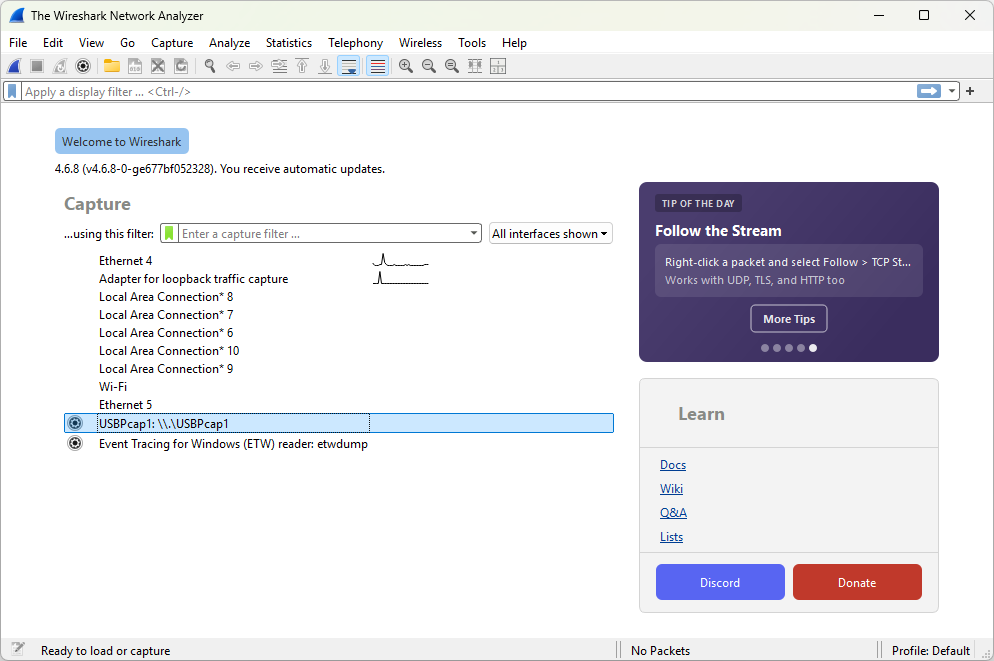
| 5. | Double-click it to begin capturing with no filter applied. |
| 6. | Unplug the scale from the PC, wait 2 seconds, then plug it back in. |
| 7. | Confirm a burst of packets appears in the capture window (this is the USB re-enumeration). |
If no traffic appears, stop and confirm Wireshark is running as Administrator, or check other "USBPcap#" interfaces if multiple exist.
| 8. | With the capture still running, note the Source address shown for the scale's packets ( e.g. "1.13.2"). |
In the Wireshark filter bar, enter: usb.src == "X".
Replace "X" with the device number from the source address, for example usb.src == "1.13.2".
| 9. | Place an object of known weight on the scale. |
| 10. | In Wireshark, stop capturing packets. |
| 11. | In Wireshark, click on one of the incoming "URB_INTERRUPT in" packets. |
| 12. | In the packet detail pane, analyze the HID Data. |
Wireshark will often auto-decode the fields for you.
If the fields are not decoded, then search the manual of the device to confirm the format of the HID data.
Otherwise, search online to see if any other user has verified the format of the HID data.
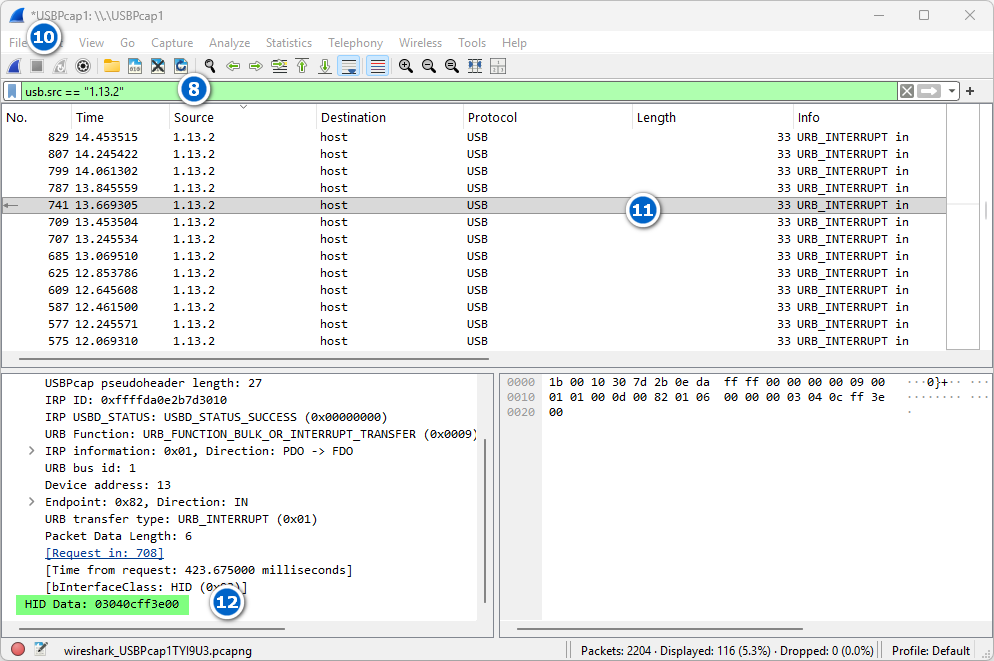
Sample HID data below for Dymo scale.
The format may be different for a different device and requires experimentation to correctly decode.
03 04 0C FF 3E 00
There are 6 bytes, 0-5, that are transmitted by the scale.
The information is encoded in Hexadecimal.
Byte 0 can be ignored.
Byte 1 transmits whether the weight value is positive or negative.
If Byte 1 is 04, then the value is positive.
If Byte 1 is 05, then the value is negative.
Byte 2 transmits the unit of weight.
If Byte 2 is 03, then the unit is kg.
If Byte 2 is 12 (0C), then the unit is lb.
Byte 3 can be ignored
Byte 4-5 transmit the weight.
The weight here is read in Little Endian format.
So, Byte 5 is read first.
003E(h) is 62 in decimal.
The weigh scale displays values with 1 decimal place precision so the value is 6.2.
Therefore, on the scale at the moment is an object that weighs 6.2 lbs.
| 13. | Compare the decoded weight against the value shown in the Dymo scale to confirm accuracy. |
If they are different, then repeat the above steps with a different known weight and re-check the byte positions, as firmware revisions can vary slightly between units.
Part 2 - Acquisition of Vendor and Product ID
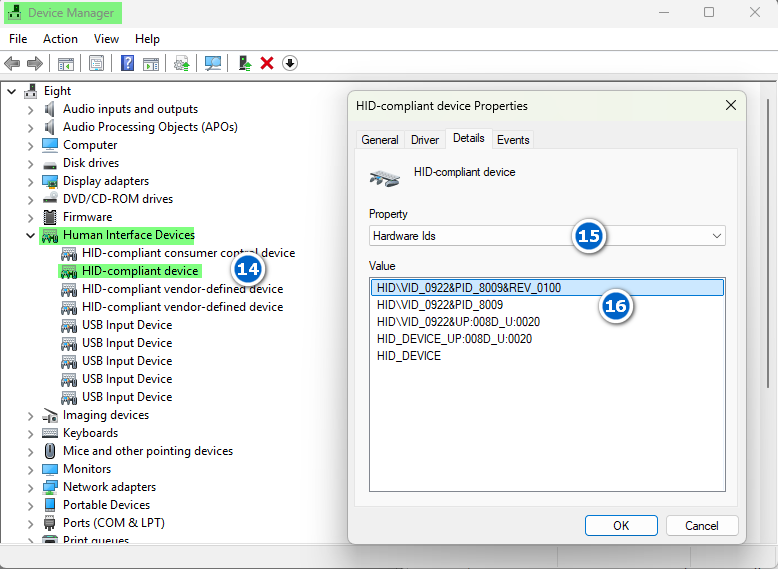
| 14. | In Device Manager, locate the scale under **Human Interface Devices** (may appear as "HID-compliant device" or "USB Input Device"). |
| 15. | Right-click on Properties, then the Details tab. Select "Hardware Ids" from the drop down. |
| 16. | Record the Vendor ID (VID) and Product ID (PID). |
VID_0922 & PID_8009
0922 = Dymo-CoStar Corp. (vendor)
8009 = this specific scale model (product)
Alternatively, the Vendor and Product ID can be found on the internet for some devices.
A quick search on the internet might populate the Vendor and Product ID in a forum or a related manual.
| 17. | Run the Python script based on the information collected in the above steps. A sample script is seen below. |
Sample Script
import time
import hid
import struct
import threading
import asyncio
import os
# Replace with your device's actual VID and PID
VENDOR_ID = 0x0922
PRODUCT_ID = 0x8009
# Modbus libraries
from pymodbus.server import StartAsyncTcpServer, StartTcpServer
from pymodbus.datastore import ModbusServerContext, ModbusSequentialDataBlock, ModbusDeviceContext
#Set up the Modbus Server
hr_block = ModbusSequentialDataBlock(0,[0]*100)
device_context = ModbusDeviceContext(hr = hr_block)
server_context = ModbusServerContext(devices = device_context, single = True)
# Connecting the to the device
device = hid.device()
device.open(VENDOR_ID, PRODUCT_ID)
# Function to continuously read weight data from the scale and update the Modbus server
def device_read():
#Initial read of data
# Read 6 bytes from the device since WireShark confirmed 6 bytes in the HID data.
data = device.read(6, timeout_ms=5000)
#While the script can successfully poll the device
while data:
try:
# Parse through the data to find the desired values
value = data[4] + (data[5] << 8) # weight
unit = data[2] # lbs or kg
# Account for if the value is negative
if value < 0:
ModbusValue = value + 65536
else:
ModbusValue = value
print(f"Modbus Value: {ModbusValue}")
# Set the value in the Modbus server
hr_block.setValues(1,[ModbusValue,unit])
# Repeat the polling of the device
data = device.read(6, timeout_ms=5000)
# If there is no data returned from the device then raise an error
if not data:
raise TimeoutError("Device Timeout")
# If there is a TimeoutError or an OSError in polling the device, exit the program
except (TimeoutError, OSError) as error:
print(error)
os._exit(1)
# Start the device reading in a separate thread
device_thread = threading.Thread(target = device_read, daemon = True)
device_thread.start()
# Start the Modbus server
print ("Starting Modbus Server")
StartTcpServer(context = server_context, address = ("127.0.0.1",502))
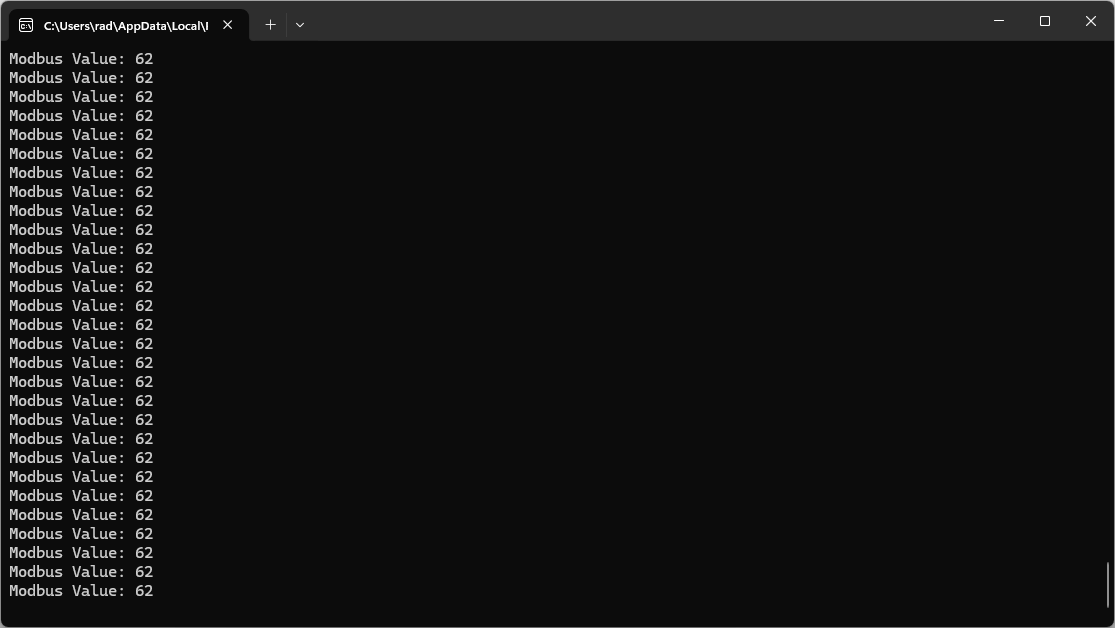
Output of the Python script
Once the Python script is running and the Modbus server is operational, then the values can be read by SpecView's Generic Modbus instrument.
For more information on that, please read through Configuring SpecView.
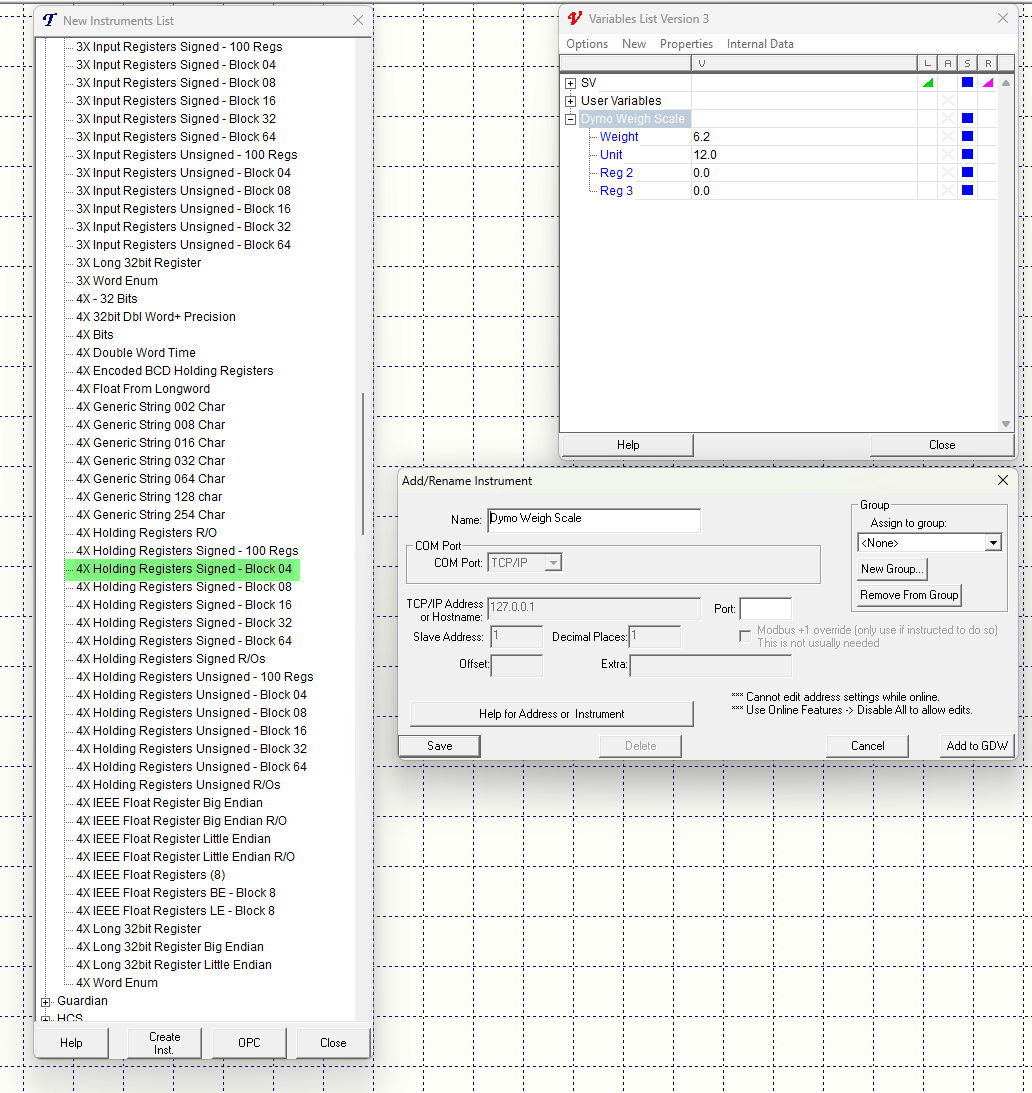
Values in SpecView through Generic Modbus
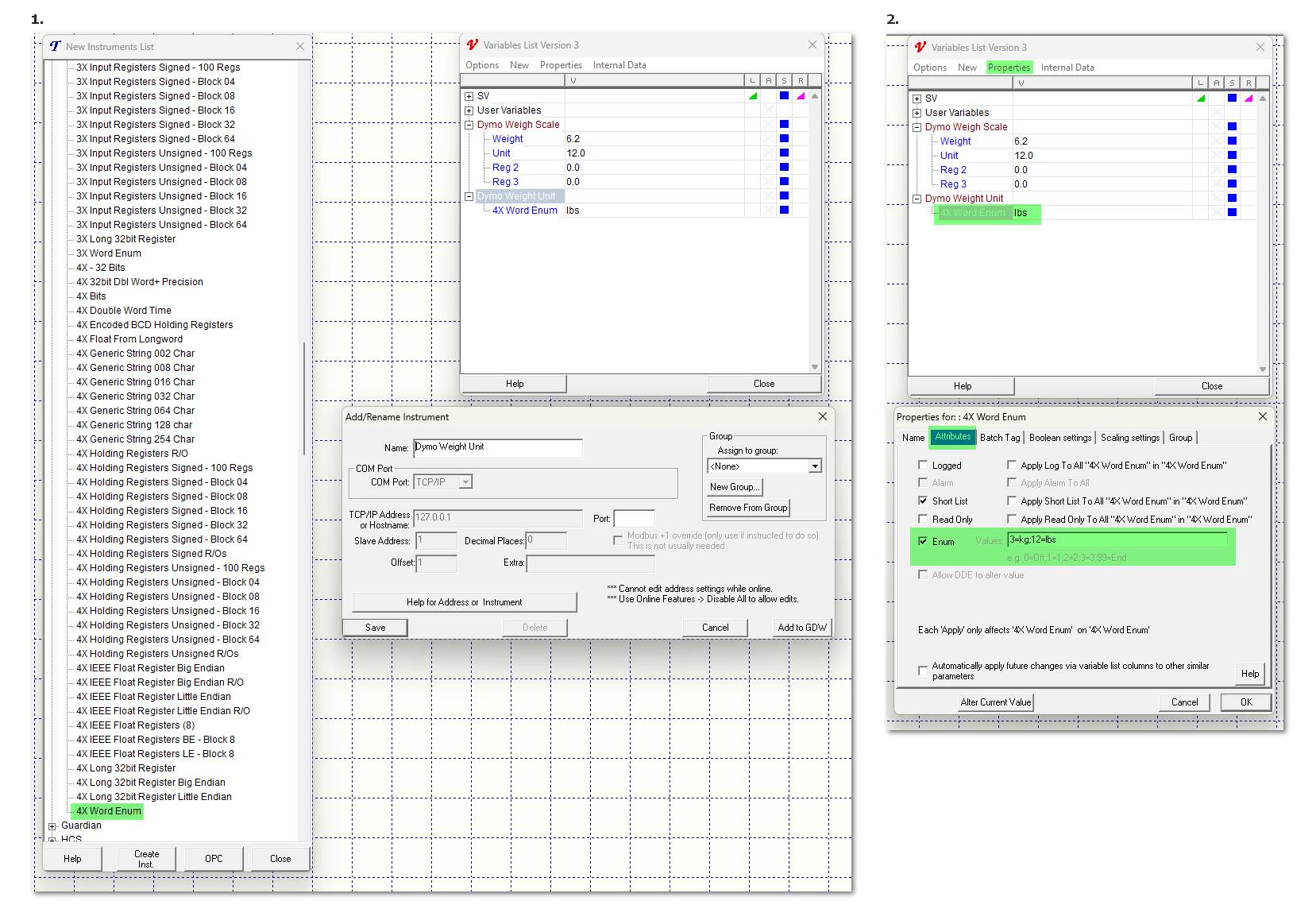
Recording the Unit as an Enumeration type parameter in SpecView