|
<< Click to Display Table of Contents >> HC900 HCDesigner import: The steps required to do it |
  
|
|
<< Click to Display Table of Contents >> HC900 HCDesigner import: The steps required to do it |
|
It is possible to add either a new HC900 instrument into SpecView, or update an existing HC900 instrument (if, for example, changes have been made to the HCDesigner file). See later in this section for important details about what can be updated.
SpecView can import both types of Modbus Maps ('Fixed Modbus Map' and 'Custom Modbus Map') from HCDesigner.
The following screen shots were taken from HCDesigner V 4.2, later vesions may have slight differences.
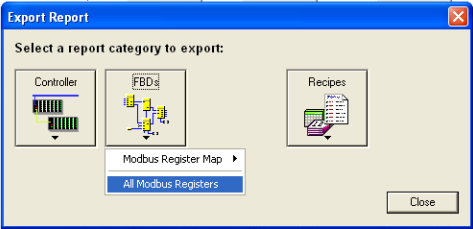
To Export the Fixed modbus map:
In HCDesigner, go to File->Export Report, then click on the FBDs button to drop down a small menu. Choose All Modbus Registers from this menu:
To Export the Custom modbus map:
In HCDesigner, go to File->Export Report, then click on the FBDs button to drop down a small menu. Choose All Modbus Partitions from this menu:
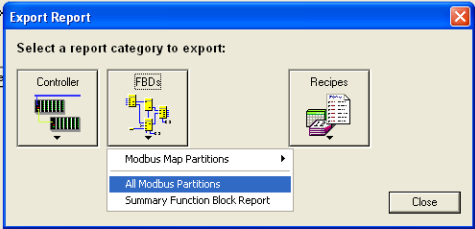
Choose a specific partition if just those blocks are being added to an existing project, or if one part of a project is being updated, SpecView can import either.
How to import the modbus map:
If the HC900 is being auto-detected using: 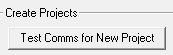
and if an HC900 is found, then the box shown below will be displayed to request the file name of the HCDesigner Modbus Map for each HC900 that is auto-detected:
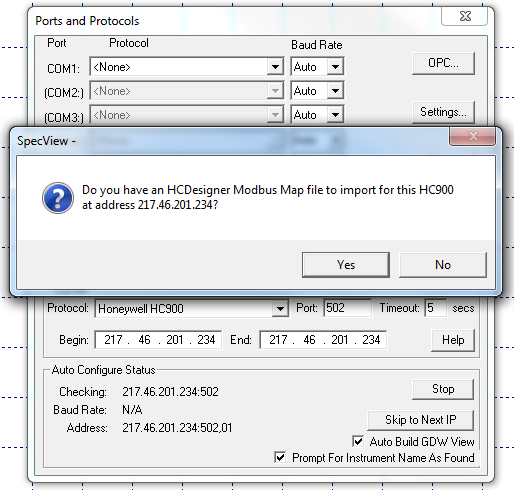
For manually adding an HC900 or updating one in an existing SpecView Project, then this is done from Edit mode in the existing project.
To do this, use the HC900 menu on the menubar in SpecView – if this menu is not present, then the HC900 protocol option is not enabled in the dongle. Please contact a SpecView representative for this option.

Choose Import HCDesigner File, the following box will be shown:

Choose Add as new HC900 to add this file to SpecView as a totally new Instrument, or Choose Update existing HC900 if this file is an update to an HC900 previously imported. (See section below on importing)
Type in, or Browse for, the name of the file to import
Select an optional Prefix for the instruments in the Prefix Section. Using a prefix can help if there is more than one HC900, either now or in the future.
| • | Use Name in file will use the Controller name given in the HCDesigner file for this HC900 configuration as the prefix for all the SpecView instruments. For example, this could give the names: FURNACE1-PIDZONE1 or FURNACE1-Variables. |
| • | None will add no prefix to the instruments, resulting in names like PIDZONE1 or Variables. |
| • | Use will use the prefix supplied. For example, if the prefix was 'F1', then all the instruments will have that prefix (a hyphen will be added automatically): F1-PIDZONE1 or F1-Variables. |
Choose the Byte Format for the instrument using the options given which cannot be changed later.
The available Byte Formats are:
FP_B (Big Endian: 4,3,2,1)
FP_LB (Little Endian Byte Swap: 2,1,4,3)
Note that SpecView does not currently support the byte formats:
FP_BB (Big Endian Byte Swap: 3,4,1,2)
FP_L (Little Endian: 1,2,3,4)
For more information on byte ordering please refer to the Help in HCDesigner.
If the Create Instrument Views on screen box is checked, then the SpecView standard Instrument Views will be created after Import for all new blocks.
The Include Variable/Tag Number as part of name checkbox determines whether or not to add the Tag Number to the beginning of the name in SpecView's Variables List. See: Including a Tag Number as part of the name
Note: SpecView uses the Short Name by default on Trend Charts, which is why it is important to know how the Short Name has been determined.
Press the OK button to start the import process. This could take a few minutes.
If there are any problems with the import or the update, then email an Archive of the project, plus the Modbus Map file that was used to SpecView.