|
<< Click to Display Table of Contents >> Quick Start - Add buttons to switch between GDWs |
  
|
|
<< Click to Display Table of Contents >> Quick Start - Add buttons to switch between GDWs |
|
To put a button on the GDW click the Draw Buttons tool  .
.
Draw the button by clicking and dragging the mouse until the button is the size and shape you require 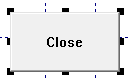 .
.
Position the button using the mouse or cursor keys as described previously.
Double-click the button to display the Button Attributes box:
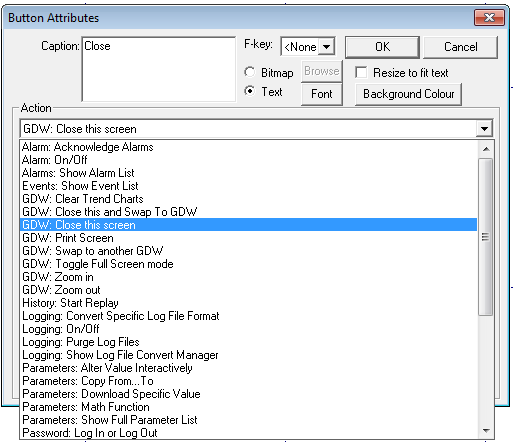
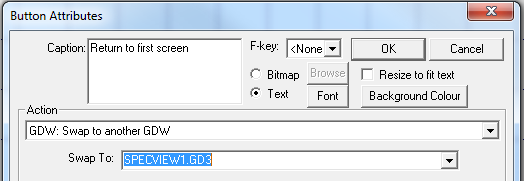
Change the text in the Caption box to say, for example, 'Return to first screen'.
Then from the Action list, select GDW: Swap to another GDW, then select the name from the Swap To list that you gave to the first GDW:
Click OK to close the Button Attributes box, then click the Save tool  to save this new GDW again.
Open the first GDW by either
clicking the Open GDW tool  and then selecting the name of the GDW from the list and clicking OK, or by selecting the name of the GDW from the Window menu.
Click the Draw Buttons tool and draw a button on this GDW as before, double-click this button and change its attributes.
Change the Caption to say, for example, 'Go to second screen'.
From the Action list, select GDW Control: Swap to another GDW, then select from the Swap To list the name that you gave to the second GDW, click OK.
Click the Save tool to save again.
For the next step read: Add a Bar chart