|
<< Click to Display Table of Contents >> Variables List - SpecView Pre-defined Variables |
  
|
|
<< Click to Display Table of Contents >> Variables List - SpecView Pre-defined Variables |
|
The first Instrument shown in the Variables List is SpecView, these are the variables that exist only in SpecView but have all the same properties as other variables and can be:
• Logged
• Included in Recipes
• Put on Trend charts or Bar Charts
SpecView boolean variables are used as switches to control events in the Strategy Controller.
There are two kinds of SpecView variables, User and Pre-Defined:
SpecView Pre-Defined Variables
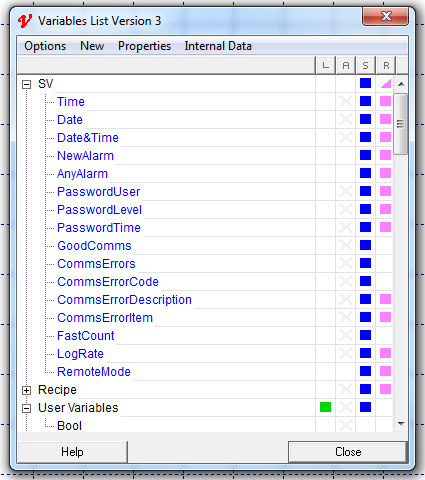
In order to Log pre-defined variables use double-click in the 'L' (Logged) column of the Variables List.
SpecView.Time and SpecView.Date
The current Time and Date on the computer.
SpecView.Date&Time
The current Date and Time combined, which is useful for Strategy Events.
| SpecView.NewAlarm |
| A Boolean which will become True when there is a new alarm, and will remain True whilst there are any alarms left un-acknowledged. It will be set back to false when all alarms have been acknowledged. |
SpecView.AnyAlarm
A Boolean which will be True when there is any alarm, whether acknowledged or not. It will be set back to false when all alarms have been cleared. For further details read Alarms
SpecView.PasswordUser
A Text variable set to the username of the current user who is logged in.
SpecView.PasswordLevel
An Integer variable set to the level of the current user who is logged in.
SpecView.PasswordTime
A Countdown Timer variable set to the number of seconds that this user can remain logged in. These are shown on the Status bar. For further details read Passwords
SpecView.GoodComms
The total number of successful comms transactions coming in from all attached ports
SpecView.CommsErrors
The total number of unsuccessful comms transactions coming in from all attached ports
SpecView.CommsErrorCode
The last error code from the last failed transaction
SpecView.CommsErrorItem
| The name of the parameter which caused the last error code. The most common error code is: 1460, which is a timeout. All of the above Comms counters can be reset to Zero by writing to them. Writes of other values are ignored. Currently it is not possible to determine which COM port the error(s) occurred on, if this is needed, use the Toggle DEBUG menu command on the Options Menu under the direction of a SpecView representative. |
SpecView.CommsErrorDescrption
Gives more information about the error code
SpecView.FastCount
| A counter that counts-up accurately and continuously at rates up to 100 times per second. You can use this counter as the basis for a Strategy Controller Event that needs to be checked frequently. For further details read SpecView.FastCount Variable. |
SpecView.LogRate
| The current value for the logging rate. This variable's initial value when entering Runtime mode will be the value set from Preferences - Logging. The variable is Read Only and cannot be changed during Runtime mode, other than by using the Logging: On/Off action. |
SpecView.RemoteMode
| This variable is set to 'Off' when on the Local or set to 'On' when on the Remote. This can be used for example to ensure there is only an 'Exit SpecView' button on the Remote. Not on the Local. To do this use Position Dynamics to position the Exit button off-screen when RemoteMode=Off. Or for use with ActiveX controls. |
SpecView.Web Server Status
As of SpecView 3.1.267, this variable is available to users. For further details read here.
SpecView Pre-Defined Variables for Recipe

Most Recent:
Recipe Name is the name of the last Recipe downloaded
Download Date and Download Time are the Date and Time that the recipe was downloaded
Downloaded By is the name of the remote connection that downloaded the last Recipe
Downloaded From GDW is the name of the GDW from which the Recipe was downloaded
Sent To Is the name of the instrument to which the Recipe was downloaded
Although these variables under 'Most Recent' are the ones most commonly used, these variables are also available specifically for each individual screen (GDW) which has a Recipe.
If a screen (GDW) with a Recipe needs to be deleted then it is best to first use the Recipe tool (knife&fork) to un-select all variables that are highlighted as being in the Recipe.
Then save the screen (GDW), open the Variables List and check there is no entry for this GDW in the Recipe section of the Variables List.
Then the screen (GDW) can be deleted. However, it doesn't matter if there are extra entries in the Recipe section of the Variables List, this is just for tidiness.