|
<< Click to Display Table of Contents >> Web Server - Connections |
  
|
|
<< Click to Display Table of Contents >> Web Server - Connections |
|
Please read through the Web Server section to learn more about SpecView's Web Server features.
There are many ways that companies access the Internet and hence it is difficult to be exact about the things that need to be set up to assess incoming access from a remote browser.
What follows is a very brief description of what is needed, seek help from the I.T. Department for the details.
A brief discussion of terms used:
| • | ISP: Internet Service Provider. This is the company supplying Internet |
| • | Router: The device that allows connection to the Internet |
| • | Public IP: This is the IP address on the Internet that your company router is connected to. |
| • | LAN: Local Area Network – the company network inside the building |
| • | Dynamic IP: An IP Address that changes |
| • | Static IP: An IP address that is fixed |
| • | DNS: Doman Name System – the method the Internet uses to associate a name with an IP address. |
| • | DDNS or Dynamic DNS: A Service that allows an Internet Name to be associated with a Dynamically changing IP address. |
| • | Port Forwarding: A way to route packets inside the company in the LAN |
Here are 3 diagrams outlining how a cellphone / tablet or any other computer with a Web browser can access the SpecView Web server in different scenarios:
| 1. | Access only from within the company, NOT outside. |

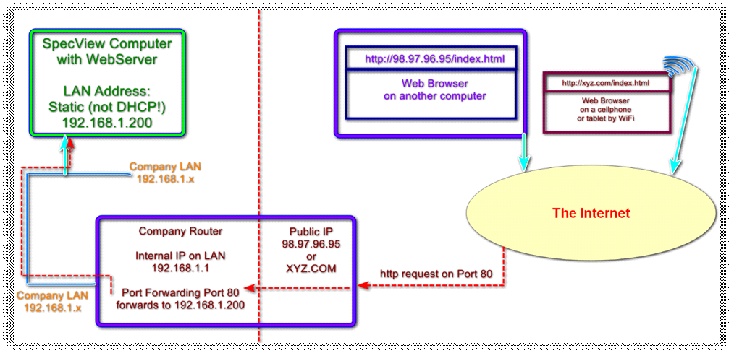
| 2. | Access from outside where a Static Public IP is setup, or a fixed DNS is already in use, Port forwarding setup to route packets to the SpecView computer. |
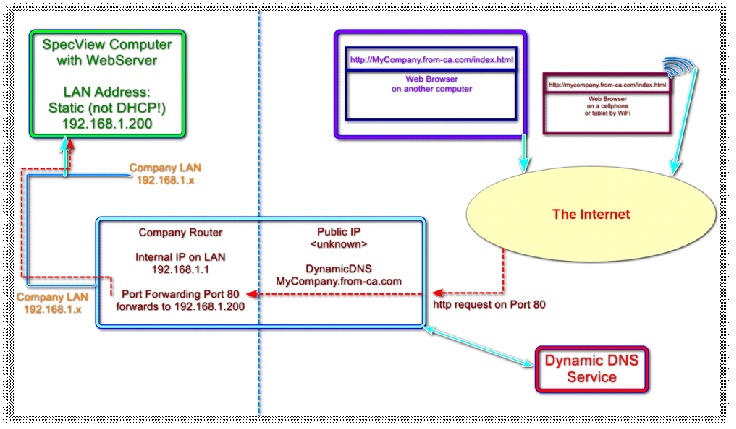
| 3. | Access from outside where ISP uses Dynamic IP and Company uses Dynamic DNS to map MyCompany.from-ca.com to the SpecView computer through the router. |
When a company has internet access, the way that it is assigned an IP address can be either Dynamic or Static.
Dynamic IP. Unless otherwise setup, most businesses and individuals have a dynamic IP address assigned by their ISP. This Dynamic IP address can change every day or every week, as the ISP does it’s normal things. This means that it is usually difficult to connect into the company because the Public IP address can change from time to time.
Static IP. This is usually an extra cost service from the ISP, where one or more IP Addresses are assigned to the company and will not change. This makes it easy to connect to the company because the Public IP address will not change. Some ISPs supply static IP as an extra cost service, others do not allow it at all.
In the case where Static IP is not available, the Dynamic IP that is the usual case makes it difficult to know what the Public IP address of the company is, and so makes it near impossible to connect to the company from outside.
To solve this problem, a Dynamic DNS (DDNS) service can be used. This is a service that may be in the router, or may be implemented separately which allows an Internet Domain Name to be associated with the company and it is updated as the company’s Dynamic IP address changes.
There are many DDNS service suppliers, with varying costs, varying available domain names to choose from and various service costs. Which one to choose from is up to the IT Department, and the router being used.
One such service is “DynDNS” from Oracle: https://account.dyn.com/

Here, a Dynamic DNS domain name service may be purchased, for example:
The oval highlight shows the company name and the various domains available are in the green box. In this example screenshot, the Dynamic DNS name would be: mycompany.from-ca.com
This name would remain fixed as the company’s Public IP address changes, meaning that there is a fixed, known address that can be typed in that will always reach the company.
Then, in the company’s Internet Router, the DDNS service can be enabled to manage the changes, or a third party application can be run inside the company to achieve the same thing.
Having setup a DDNS service, or having a Static IP from the ISP, the last steps are to deal with the various firewalls that are blocking access.
Setup the Internet Router to port-forward the incoming Web Server requests to the target Computer.
Suppose the Computer inside the company, on the LAN, has a fixed static IP address of 192.168.1.200.
The Internet Router needs to be setup to port forward Port 80 from the Internet to the 192.168.1.200 computer.
If port 80 is already being used by the company for it’s own Web Server, then both SpecView and the Port forwarding need to be changed to use an alternative port.
The Final step is to setup the SpecView Computer at 192.168.1.200 to allow incoming port 80 requests through the firewall.
How this is achieved depends on the firewall / Endpoint Security / Antivirus setup, so the IT Department can help with that.
Please read through Web Server - Port 80 Setup.